
Knowledge Hub
iPhone users
Follow the steps below to transfer your photos from your phone to your desktop computer while preserving the geo-tag data. Traditional methods, such as emailing the photo to yourself, will remove the geo-tag data from the image. Always use iCloud, Google Drive, or directly transfer via USB to ensure the geo-tagging information remains intact.
- Take the photos
- Make sure your location settings are turned on for photos. See the instructions on the Smart Photo Setup page for guidance.
- Log in to iCloud
- On your desktop computer, open a web browser and go to icloud.com.
- Log in using your Apple ID and password.
- Access and download your photos
- Click on the “Photos” app in iCloud.
- Find the photos you need and select them.
- Click the Download button (a cloud icon with an arrow) to save the images to your computer.
- Upload to the web form
- Go back to the web form and upload the downloaded photos as required.
Android users
- Take the photos
- Ensure your location settings are turned on for photos. Refer to the Smart Photo Setup page for detailed steps.
- Upload photos to Google Drive
- Open the Google Photos or Google Drive app on your phone.
- Upload the required photos to Google Drive.
- Log in to Google Drive
- On your desktop computer, open a web browser and go to drive.google.com.
- Log in with your Google account.
- Download the photos
- Locate the photos in your Google Drive.
- Right-click on the photo(s) and select Download to save them to your computer.
- Upload to the web form
- Return to the web form and upload the downloaded photos.
Plugging your phone into your computer
- Take the photos
- Ensure your location settings are turned on for photos. Refer to the Smart Photo Setup page for detailed steps.
- Connect your phone to your computer
- Use a USB cable to plug your phone into your desktop computer.
- Access your photos
- For iPhone users:
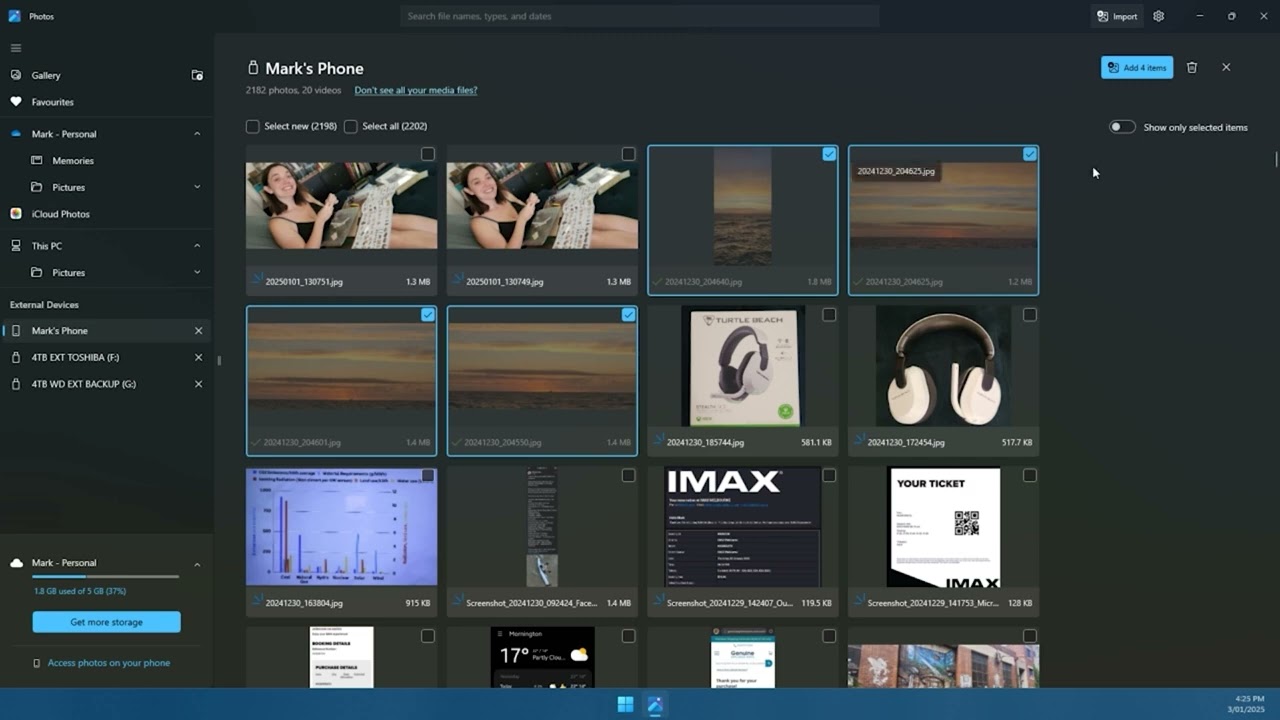
- Open the Photos or File Explorer app on your computer.
- Find your iPhone under “Devices” or “This PC” and access the photos folder.
- For Android users:
- Tap “Allow” or “Transfer Files” on your phone if prompted.
- Open File Explorer on your computer and locate your phone under “Devices” or “This PC.” Navigate to the photos folder.
- For iPhone users:
- Copy the photos to your computer
- Select the photos you need and copy them to your computer by dragging them to a folder.
- Upload to the web form
- Upload the copied photos to the web form as required.
